Workbooks
The top-level container for your data — sheets, tables, automations, and files in one place.
Overview
A workbook is the top-level container in SheetOS. Everything you build lives inside one — tables, sheets, automations, and files. Each workbook has its own backend that keeps running when you close the tab.
Each workbook is isolated. It has its own database, its own file storage. Nothing leaks between workbooks.
Contents
A workbook contains pages and infrastructure. Pages are the things you see and interact with. Infrastructure runs behind the scenes.
Pages
Pages appear as tabs at the bottom of the workbook. Each page is either a sheet or a table.
- Sheets — free-form grids with cells addressed as A1, B2, C3. Use them for calculations, summaries, and dashboards.
- Tables — structured databases with named columns and typed data. Use them for structured records.
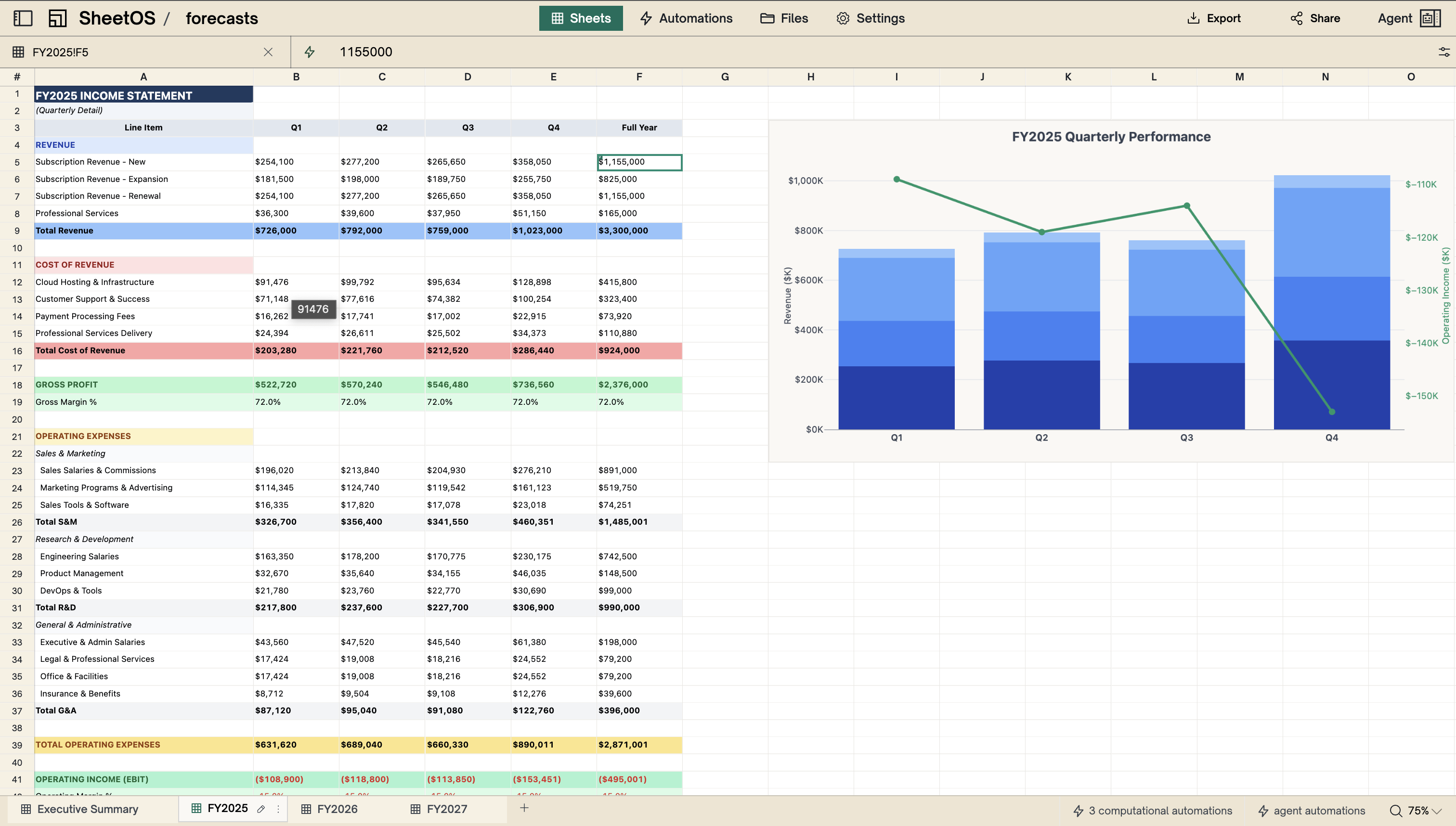
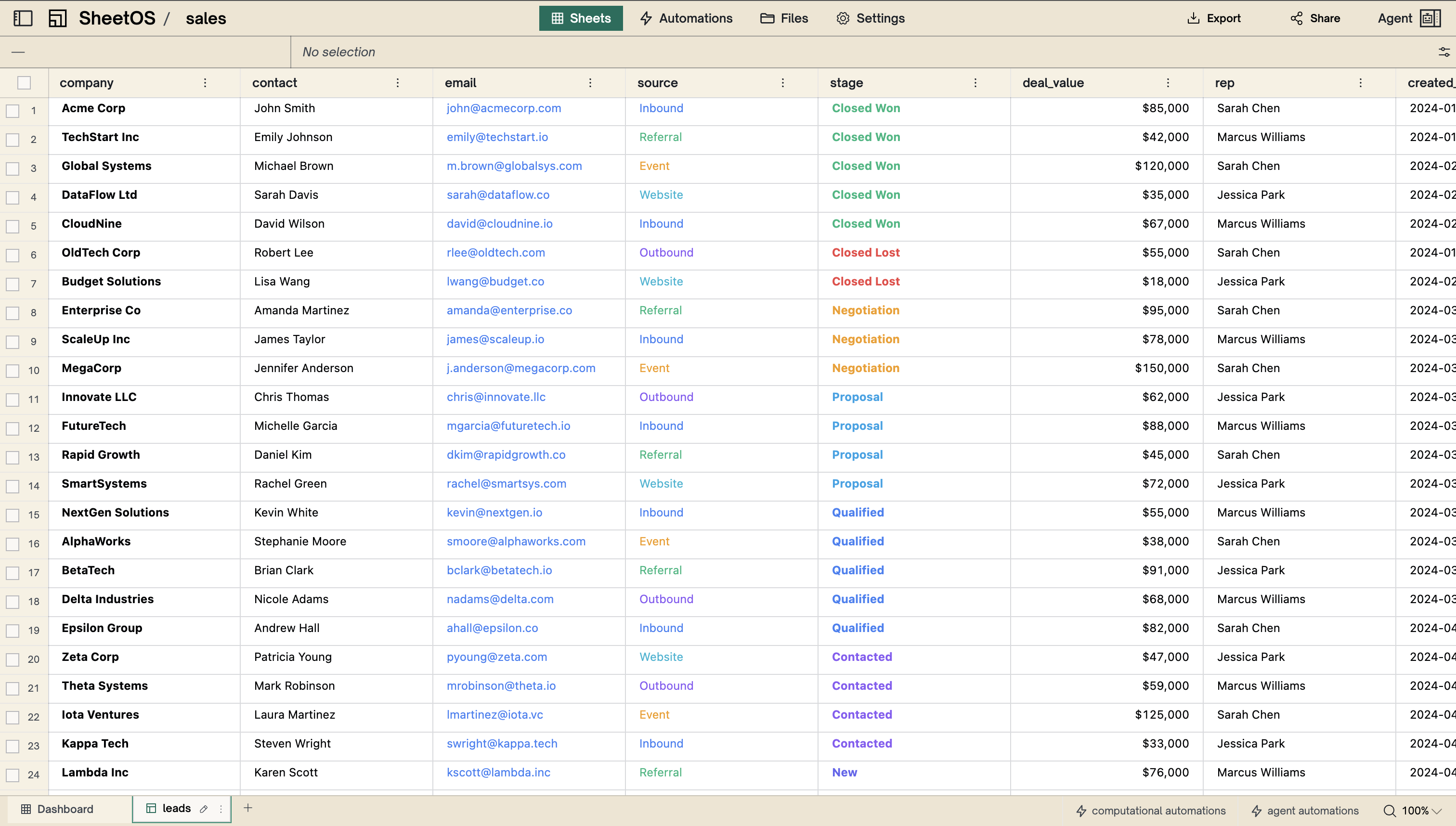
You can reorder pages by dragging, rename them by double-clicking the tab, and delete them from the tab’s context menu.
Infrastructure
Behind the pages, every workbook also has:
- Automations — background Python scripts and scheduled tasks that keep your data computed and fresh
- Files — a built-in filesystem for scripts, data files, and uploads (up to 500 MB total)
Creating a workbook
Go to the workbook list
When you sign in, you land on the workbook list — your home screen. Every workbook you own or have access to appears here.
Click New workbook
Click the New workbook button in the top right. A new workbook is created immediately with a default name.
Start building
Add pages manually with the + button at the bottom.
The workbook header

The header bar across the top of a workbook contains:
- Workbook name — click to rename. The name is visible in your workbook list and to anyone you share with.
- Topic tabs — switch between views: Sheets (the default page view), Files, and Settings.
- Share button — invite collaborators by email. Shared users get read or write access to the entire workbook.
Sharing
Workbooks can be shared with other SheetOS users by email. From the Share button in the header:
- Enter an email address and click Share to invite someone
- Shared users appear in a list with their permission level
- The owner can remove collaborators at any time
Shared users see the workbook in their own workbook list and can open it just like their own.
Note
Sharing grants access to the entire workbook — all pages, automations, and files. There is no per-page permission control.
Settings
Open workbook settings from the Settings tab in the header. Settings are organized into sections:
- General — workbook name, description, and storage usage (filesystem bytes used, file count)
- Sheets — default configuration for new sheets (max rows, max columns, column width, row height, grid lines)
- Tables — default configuration for new tables (column width, row height, grid lines)
- Connections — web search integration settings, including toggleable search categories (news, people, scholarly, company, PDF, financial reports)
- Sharing — manage collaborators, same as the Share dialog
- Danger zone — delete the workbook permanently
WORKBOOK.md
Every workbook has a WORKBOOK.md file — a markdown document that describes the workbook’s purpose, conventions, and preferences.
The default template has sections for:
- Purpose — what the workbook is for
- Relationships — how entities connect (e.g., “leads table feeds into customers table”)
- Sources — preferred data sources
- Conventions — formatting and naming patterns
- Quality — data standards and validation rules
- Workflow — user preferences for how to work
You can edit it directly to set explicit rules.
Next
Sheets
Free-form grids for calculations, summaries, and dashboards.
Tables
Structured databases with named, typed columns.
Automations
Background tasks that keep your data computed and fresh.