Files
Every workbook has an isolated filesystem for automation code, uploaded data, and generated outputs.
Overview
Every workbook has its own isolated filesystem. Files store automation code, data you upload, outputs your automations generate, and workbook documentation.
Default structure
A new workbook starts with a few reserved paths. Everything else is yours to organize however you want.
src/engine/automations/— Python automation scripts. The engine watches this folder. Drop a.pyfile here and it becomes a live automation automatically.WORKBOOK.md— A special file at the root that documents your workbook’s purpose and conventions.- Everything else — user uploads, generated outputs, config files. Create any folder structure you need.
Supported files
- Uploaded data — CSVs, spreadsheets, PDFs, images
- Automation code — Python scripts that power reactive calculations and scheduled tasks
- Generated outputs — reports, exports, and processed data
- Configuration — JSON or YAML files for custom workflows
The file browser
The file browser is your workbook’s file manager. Open it from the workbook navigation.
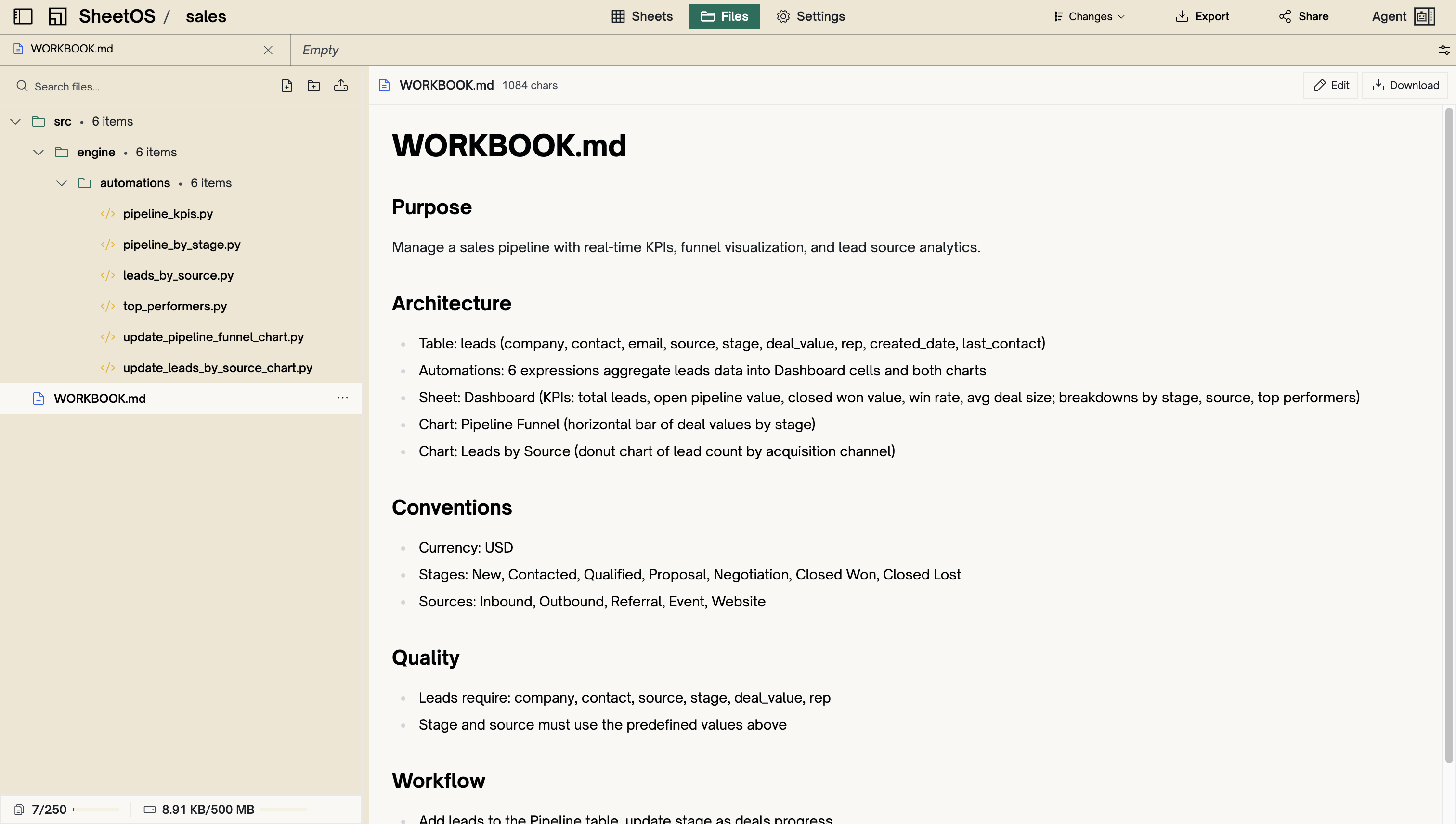
- Left panel — folder tree with search, an upload button, a create folder button, and a storage usage indicator showing how much of your quota you’ve used.
- Right panel — file content viewer and editor. Text files can be edited inline. Binary files show a preview or download option.
- Drag and drop — drag files onto the browser to upload them.
- Sorting — sort files by name, size, or last modified date.
Uploading files
Open the file browser
Click Files in the workbook navigation to open the file browser.
Upload files
Click the upload button in the toolbar, or drag and drop files directly onto the browser. You can upload multiple files at once.
Choose a destination
Files upload to the currently selected folder. Navigate to the right folder before uploading, or move files after.
You can also create folders, rename files, and delete files directly from the file browser.
Files and automations
The filesystem is how automations are created. Any .py file placed in src/engine/automations/ automatically becomes a Python automation. The engine parses the script, captures which cells it reads and writes, and sets up reactive triggers so it re-runs when inputs change.
Deleting the file removes the automation. Updating the file re-analyzes dependencies and re-runs the script.
Warning
WORKBOOK.md
WORKBOOK.md is a special file at the root of every workbook’s filesystem. It serves as the workbook’s documentation — what it’s for, how it’s organized, and any conventions or rules.
Use it to document:
- What the workbook tracks or manages
- Naming conventions for tables and sheets
- Business rules and data standards
- Data sources and update schedules
You can edit it directly in the file browser. The agent also reads and updates it automatically.
Next
Automations
Background tasks that keep your data computed and fresh.
AI Agent
The conversational assistant built into every workbook.